
Certificate Dependencies
Overview
Section titled “Overview”Certificate dependency mapping is OrgGuard’s answer to a simple question: “If this certificate expires, what breaks?” For every certificate in your org, OrgGuard discovers which configurations reference it: Named Credentials, the Identity Provider, SAML SSO configs, Outbound Messages, and Connected-App JWT bearer consumers. The result is a blast-radius map that turns a certificate expiry from a guessing game into a clear remediation plan.
What you’ll see
Section titled “What you’ll see”Dependency data appears in three places:
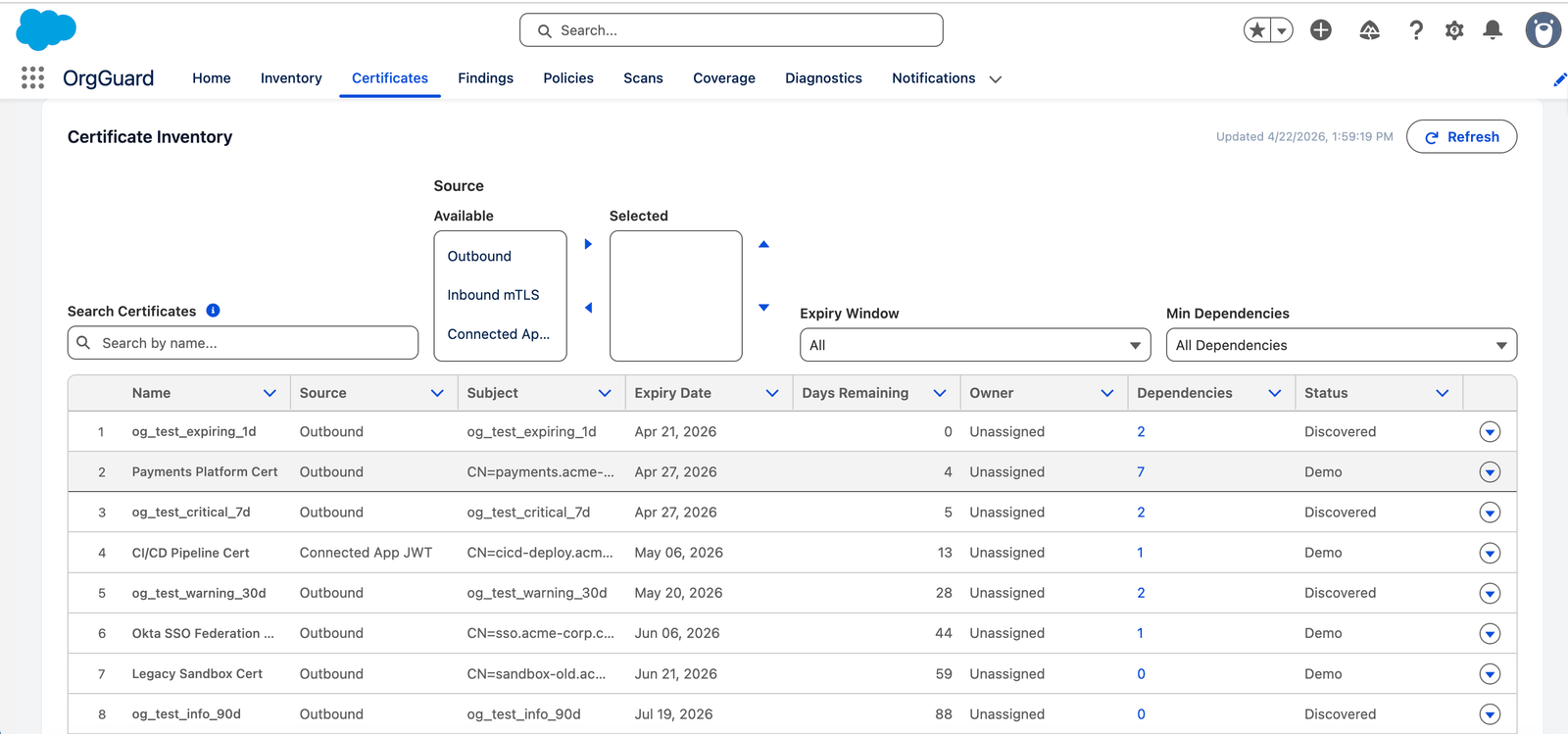
1. Certificate Inventory (Dependencies column)
Section titled “1. Certificate Inventory (Dependencies column)”The inventory table includes a Dependencies column showing the numeric count of configurations that reference each certificate. The count is color-coded by severity:
| Count | Visual treatment | Meaning |
|---|---|---|
| 0 | Gray, muted | No known dependencies (may be unused) |
| 1 to 2 | Default text | Low blast radius |
| 3 to 5 | Bold, amber | Moderate blast radius |
| 6+ | Bold, red | High blast radius, prioritize rotation |
Clicking a dependency count navigates to the certificate’s detail page with the Blast Radius tab pre-selected.
Use the Min Dependencies filter to narrow the inventory to certificates with a minimum dependency count (e.g., “3+ Dependencies”). This filter persists across sessions.
2. Certificate Detail (Blast Radius tab)
Section titled “2. Certificate Detail (Blast Radius tab)”The Blast Radius (N) tab on any certificate detail page lists every configuration that references the certificate. The tab opens with the plain-language statement “If this certificate expires, N integration(s) will fail.” followed by “Including:” and the list of affected configurations. The tab label includes a live count so you can see the blast radius without clicking.
Each dependency row shows:
| Column | Description |
|---|---|
| Type | NamedCredential, IdentityProvider, SAMLIdP, OutboundMessage, or JWTConsumer |
| Name | Human-readable name of the dependent configuration |
| Record ID | Salesforce record ID for deep linking |
3. Certificate Detail (from a finding)
Section titled “3. Certificate Detail (from a finding)”When a certificate has critical or high severity findings (e.g., “Expiring Soon”), navigate to the certificate’s Blast Radius tab, where the full list of affected integrations appears. The findings list shows no per-finding dependency counts and its rows open the Finding__c record page — not the certificate. You reach the blast-radius context by opening the certificate from the Certificates tab (or via the finding’s source certificate).
Common tasks
Section titled “Common tasks”Task: Check what breaks if a certificate expires
Section titled “Task: Check what breaks if a certificate expires”Who can do this: OrgGuard User, OrgGuard Admin
- Navigate to the Certificates tab.
- Find the certificate in the inventory table.
- Look at the Dependencies column for the count.
- Click the count to open the detail page with the Blast Radius tab selected.
- Review the list of configurations that depend on this certificate (the blast radius explanation shows what breaks if the certificate expires).
Expected result: You see every Named Credential, Identity Provider, SAML config, Outbound Message, and Connected-App JWT bearer consumer that will be affected when this certificate expires.
Task: Filter the inventory by dependency count
Section titled “Task: Filter the inventory by dependency count”Who can do this: OrgGuard User, OrgGuard Admin
- Navigate to the Certificates tab.
- Use the Min Dependencies dropdown to select a threshold (e.g., “3+ Dependencies”).
Expected result: The table filters to show only certificates meeting or exceeding that count. Pagination updates to reflect the filtered total. The filter persists if you navigate away and return.
Task: Navigate from a finding to its dependency map
Section titled “Task: Navigate from a finding to its dependency map”Who can do this: OrgGuard User, OrgGuard Admin
- On the Findings list, click the finding row to open its
Finding__crecord page and identify the source certificate it was raised against. - Go to the Certificates tab and open that certificate (or use a related link from the finding record to its source certificate).
- Click the Blast Radius tab to see what configurations are affected and the blast-radius explanation.
Expected result: You see the full dependency list for the certificate that triggered the finding.
How dependency discovery works
Section titled “How dependency discovery works”OrgGuard discovers dependencies automatically during scheduled discovery scans. For each certificate, OrgGuard inspects your org’s configuration to find all configurations that reference the certificate by name or thumbprint. Dependencies are stored in CertificateDependency__c records linked to the parent TrackedAsset__c certificate.
Discovery runs as part of the standard scan schedule. You do not need to configure dependency discovery separately.
Dependency types
Section titled “Dependency types”| Type | What it covers |
|---|---|
| NamedCredential | Named Credentials that use this certificate for mutual TLS or signing |
| IdentityProvider | The org’s Identity Provider when it uses this certificate for SAML assertion signing |
| SAMLIdP | SAML Identity Provider (SSO) configurations referencing this certificate |
| OutboundMessage | Outbound Message configurations using this certificate for signing |
| JWTConsumer | Connected Apps that consume this certificate for JWT bearer flow |
For detailed technical information about each type, see the Dependency Types Reference.
Troubleshooting
Section titled “Troubleshooting”| Symptom | Likely cause | Fix |
|---|---|---|
| A certificate shows 0 dependencies but you know integrations use it | The certificate may be referenced by a configuration type that OrgGuard does not yet discover, or the configuration may not be represented in org metadata in a discoverable form | Check the Dependency Types Reference for supported types. If the type should be supported, run a manual discovery scan from Scan Management and check the diagnostic logs |
| Dependency count seems stale after a configuration change | Dependency discovery runs during scheduled scans, not in real time | Trigger a manual scan from the Scan Management page to refresh dependency data |
| ”No dependencies found” on a cert that had dependencies yesterday | The dependent configuration may have been deleted or reconfigured to use a different certificate | Check the certificate’s Alert History tab for any recent events, and verify the configuration in Salesforce Setup |
Q: How often does dependency discovery run? A: Dependencies are refreshed on every scheduled discovery scan. The default schedule is daily. You can trigger a manual scan at any time from Scan Management.
Q: What if a certificate has zero dependencies? A: A zero-dependency certificate may be unused, or it may be referenced by a configuration type that OrgGuard does not yet support. OrgGuard does not automatically suppress findings for zero-dependency certs. If you confirm the cert is unused, you can acknowledge the finding.
Q: Can I manually add dependencies? A: Not in v1.0. Dependencies are discovered automatically during scheduled scans. Manual dependency creation is planned for a future release.
Q: Why are some dependencies missing? A: OrgGuard discovers dependencies by inspecting your org’s configuration during each discovery scan. If a configuration references a certificate in a way that is not represented in org metadata (e.g., a custom Apex callout that reads a certificate by name at runtime), OrgGuard cannot discover it automatically.
Q: Does dependency mapping work for non-certificate assets? A: In v1.0, dependency mapping is specific to certificates. Configurations that reference a certificate — Named Credentials, the Identity Provider, SAML SSO configs, Outbound Messages, and Connected-App JWT bearer consumers — appear on the certificate’s Blast Radius tab. Of those, Named Credentials are also tracked as standalone inventory assets (searchable and filterable in the Asset Inventory), alongside Connected Apps, Auth Providers, and External Credentials. The Identity Provider is dependency-only: it does not appear as a standalone inventory row because it is a single org-level configuration toggle, not a discrete record with lifecycle, ownership, or per-record metadata.