
Certificate Lifecycle Management
Overview
Section titled “Overview”Certificate Lifecycle Management (CLM) is OrgGuard’s module for tracking every certificate that can silently break a Salesforce integration when it expires. Unlike Salesforce’s native certificate tooling — which only emails the original creator of an Outbound certificate — OrgGuard tracks three certificate classes, routes alerts to the current responsible owner, maps which integrations depend on each cert, and maintains a full history of every alert sent and acknowledged.
CLM surfaces three certificate types that Salesforce’s native tooling handles inconsistently or not at all:
| Certificate class | Where it lives | Native Salesforce notification |
|---|---|---|
| Outbound | Salesforce Certificate object | Email to original creator only — no ownership routing, no dependency context |
| Inbound mTLS | Mutual TLS certificate feature | None — feature requires a Salesforce support request to enable |
| Connected App JWT bearer | Connected App configuration (cert or PEM upload) | Unreliable — depends on whether cert is referenced by name or uploaded directly |
What you’ll see
Section titled “What you’ll see”The CLM experience is two screens:
- Certificate Inventory — the full list of tracked certificates with expiry countdown, severity badge, source class, and current owner
- Certificate Detail — a deep-dive into one certificate covering metadata, dependency map, ownership, alert history, and open findings
Certificate Inventory
Section titled “Certificate Inventory”The top of the inventory shows a metrics header with six tiles:
- Total Certificates — count across all three classes
- Expiring in 7 days — certs needing immediate action (red)
- Expiring in 30 days — certs needing attention soon (orange)
- Expiring in 90 days — certs to plan for (blue)
- Expired — certs already past their expiry date (dark red)
- Missing Owners — certs with no current owner assigned (purple)
Below the metrics, a Certificates by Source section shows pill-shaped counters for each certificate class (Outbound, Inbound mTLS, Connected App JWT).
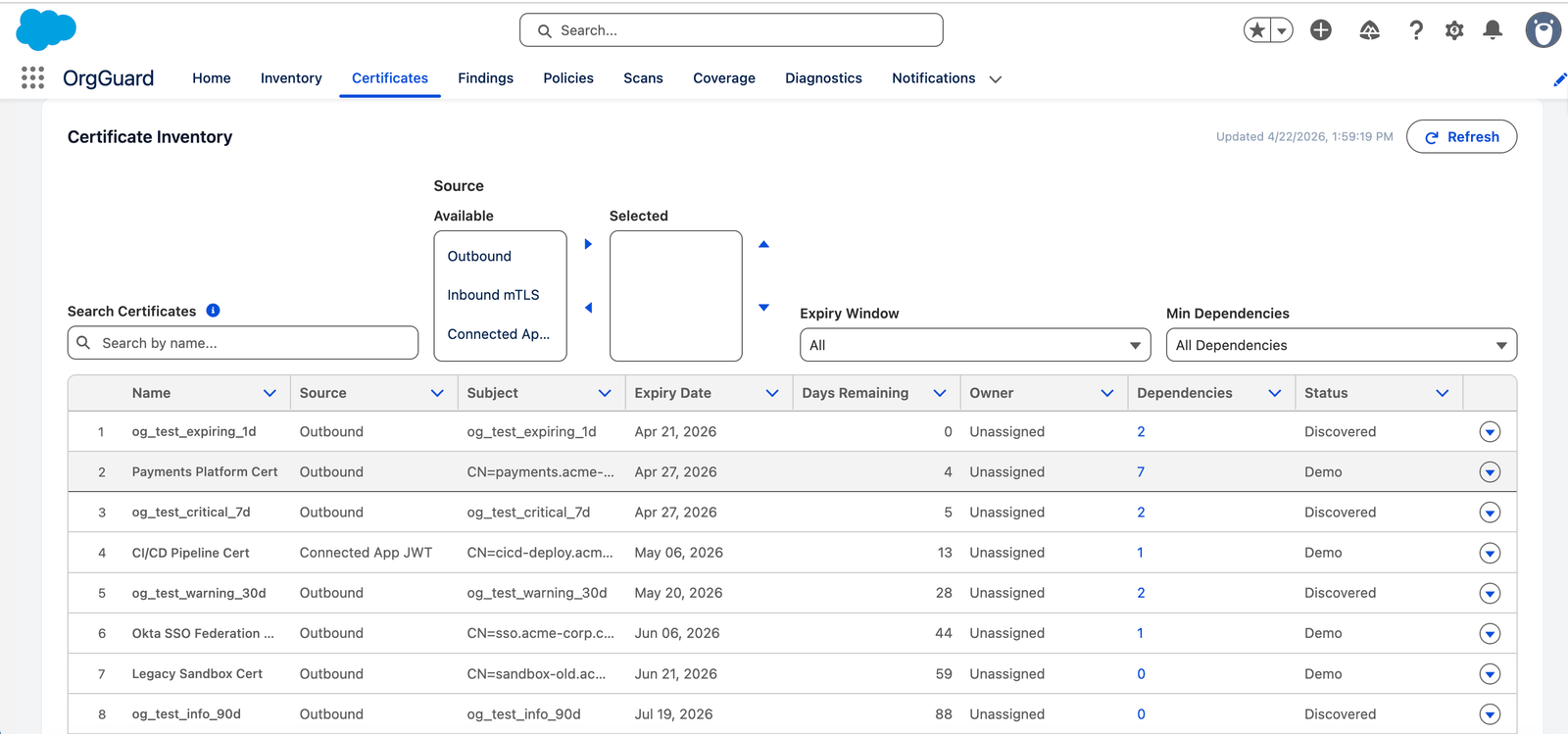
The inventory table below shows one row per certificate with columns for:
| Column | Description |
|---|---|
| Name | Certificate tracking name (sortable) |
| Source | Outbound, Inbound mTLS, or Connected App JWT (sortable) |
| Subject | X.509 certificate subject (CN, O) |
| Expiry Date | Certificate expiry date (sortable) |
| Days Remaining | Color-coded countdown — safe (>90d), medium (≤90d), high (≤30d), critical (≤7d), strikethrough (expired) |
| Owner | Current assigned owner, or “Unassigned” |
| Dependencies | Count of Named Credentials, the Identity Provider, etc. that reference this cert |
| Status | Discovery status — Discovered or Partial |
Filters let you narrow by:
- Source — multi-select (Outbound, Inbound mTLS, Connected App JWT)
- Expiry Window — dropdown (All, Expired, Within 7/30/60/90 days)
- Search — free-text search by certificate name
Pagination shows 50 certificates per page with Previous / Next controls and a “Showing X–Y of Z” counter.
Certificate Detail
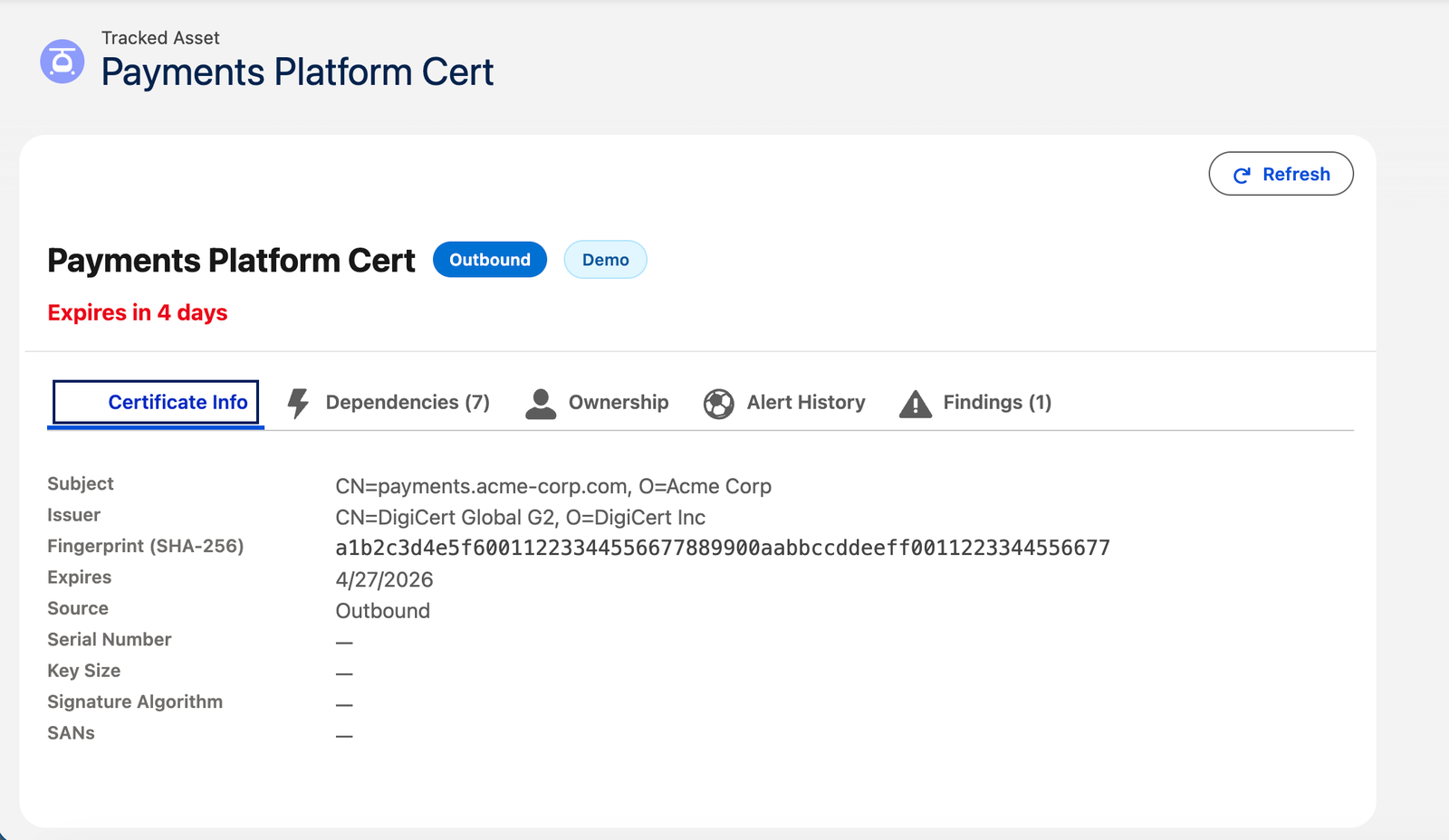
Section titled “Certificate Detail”Clicking a certificate row opens the detail view. The header shows the certificate name, a colored source badge (blue for Outbound, purple for Inbound mTLS, teal for Connected App JWT), and an expiry countdown (e.g., “Expires in 43 days” or “Expired 5 days ago”).
Below the header, five tabs organize the certificate’s data:
| Tab | Content |
|---|---|
| Certificate Info | Subject, Issuer, SHA-256 fingerprint (monospace hex), expiry date, and source. Fields not yet parsed (Serial Number, Key Size, Signature Algorithm, SANs) show ”—”. |
| Blast Radius (N) | Table of Named Credentials, the Identity Provider, SAML SSO configs, Outbound Messages, and Connected-App JWT bearer consumers that reference this certificate. The tab shows a plain-language statement: “If this certificate expires, N integration(s) will fail.” The tab label includes a live count. For a complete guide, see Certificate Dependencies. |
| Ownership | Current owner display, override status, and Change Owner button that opens a user search modal. |
| Alert History | Paginated timeline of CertificateAuditEvent__b records — alert sends, acknowledgments, ownership changes — with event type, timestamp, actor, and details. |
| Findings | Table of related findings with type, severity, status, due date, and detection date. Open findings show an Acknowledge button. |
Certificate class reference cards
Section titled “Certificate class reference cards”The Certificates dashboard always shows three reference cards — Outbound Certificates, Inbound mTLS Certificates, and Connected App JWT Certificates — explaining each certificate class OrgGuard monitors and why Salesforce’s native alerting is insufficient for it. These cards are educational only: they require no setup and appear whether or not any certificates have been discovered yet.
Common tasks
Section titled “Common tasks”View all certificates expiring in the next 30 days
Section titled “View all certificates expiring in the next 30 days”Who can do this: OrgGuard Admin, OrgGuard User, OrgGuard Auditor
Prerequisites: At least one scan has run since CLM was enabled.
- Open the OrgGuard Lightning app and click Certificates in the navigation.
- In the Expiry Window filter, select Within 30 days.
- The table updates to show only certificates expiring within 30 days, sorted by expiry date ascending (most urgent first).
- Review the Days Remaining column — color-coded critical (≤7 days, strikethrough if already expired), high (≤30 days), medium (≤90 days), safe (>90 days).
Expected result: A filtered list of urgent certificates. If the list is empty, no certificates are expiring in that window.
Assign or change the current owner of a certificate
Section titled “Assign or change the current owner of a certificate”Who can do this: OrgGuard Admin, OrgGuard User
Prerequisites: The certificate appears in the inventory.
- Click the certificate name to open the Certificate Detail view.
- Click the Ownership tab.
- Click Change Owner.
- In the modal, search for and select the new owner user.
- Click Save.
Expected result: The Current owner field updates. The Override Active indicator shows “Yes”. Future alerts for this certificate route to the new owner. The alert history records an OwnerChanged audit event.
Acknowledge an expiry alert
Section titled “Acknowledge an expiry alert”Who can do this: OrgGuard Admin, OrgGuard User
Prerequisites: An open finding exists for the certificate.
To acknowledge an open expiry finding, use the steps below. Alert emails arrive as a per-recipient digest that links to the Notifications tab (see Notifications); acknowledgment always happens inside OrgGuard, not from the email.
- Open the certificate’s Detail view.
- Click the Findings tab.
- Under Open Alerts, click Acknowledge next to the relevant finding.
Expected result: The finding status changes to Acknowledged. The acknowledgment is recorded in the Alert History tab as an Acknowledged audit event. OrgGuard will not send a duplicate alert for the same certificate within the deduplication window (24 hours), but will re-alert at the next threshold.
Understand what depends on a certificate
Section titled “Understand what depends on a certificate”Who can do this: OrgGuard Admin, OrgGuard User, OrgGuard Auditor
Prerequisites: At least one scan has run since CLM was enabled.
- Open the certificate’s Detail view.
- Scroll to the Blast Radius section.
- Review the list of Named Credentials, the Identity Provider, SAML SSO configurations, Outbound Messages, and Connected-App JWT bearer consumers that reference this certificate.
Expected result: A dependency list that tells you what breaks if this certificate expires unrenewed. An empty list means OrgGuard found no direct references — but for Connected App JWT certs, indirect references are possible; see Troubleshooting below.
Search for a certificate by name
Section titled “Search for a certificate by name”Who can do this: OrgGuard Admin, OrgGuard User, OrgGuard Auditor
Prerequisites: At least one scan has run since CLM was enabled.
- Open the OrgGuard Lightning app and click Certificates.
- In the Search Certificates field, type part of the certificate name.
- The table filters in real time as you type.
Expected result: Only certificates matching the search term appear. Clear the search field to restore the full list.
Alert window reference
Section titled “Alert window reference”| Window | Severity | Alert fired |
|---|---|---|
| Expired | Critical | Yes |
| ≤ 7 days | Critical | Yes |
| ≤ 30 days | High | Yes |
| ≤ 90 days | Medium | Yes |
| > 90 days | Safe | No alert |
These bands match the color-coded Days Remaining countdown in the inventory: critical (≤7d), high (≤30d), medium (≤90d), safe (>90d). Alert windows are configurable per policy. Alerts deduplicate within a 24-hour window per certificate to prevent spam.
Certificate source reference
Section titled “Certificate source reference”| Source | What OrgGuard discovers | Limitations |
|---|---|---|
| Outbound | Certificates used for signing outbound requests — precise expiry extracted automatically | External/uploaded certs may lack expiry data depending on source format |
| Inbound mTLS | Mutual TLS certificates used for inbound client authentication — subject and expiry will be detected automatically in Pro 1.1 | Reliable discovery on feature-enabled orgs lands in Pro 1.1; orgs without the Salesforce mutual authentication certificate feature are gracefully skipped |
| Connected App JWT | Certificates referenced by JWT-enabled Connected Apps; expiry parsed directly from the PEM-encoded certificate | Falls back to Unknown Expiry if the certificate’s expiry date cannot be parsed — affected certs continue to appear in inventory and are covered by the Unknown Expiry policy |
OrgGuard discovers Outbound and Connected App JWT certificates on every scheduled scan. Reliable inbound mTLS discovery lands in Pro 1.1; where the Salesforce mutual authentication certificate feature is unavailable (e.g., Developer Edition), OrgGuard skips it gracefully — the scan completes without error.
Troubleshooting
Section titled “Troubleshooting”| Symptom | Likely cause | Fix |
|---|---|---|
| A certificate I know exists is not in the inventory | Discovery has not run since CLM was enabled, or the cert class is inaccessible (e.g., inbound mTLS not enabled) | Trigger a manual scan from Scan Management; check Coverage Summary for discovery gaps |
| Alerts are routing to the wrong person | The original creator of the Salesforce certificate is no longer the responsible owner | Use the Override owner workflow to assign the current owner in OrgGuard |
| No dependencies shown for a Connected App JWT cert | OrgGuard found the cert via direct-upload path (no certificate reference); indirect usage is not always detectable | Review the Connected App configuration manually and note the cert dependency in OrgGuard’s Notes field |
| Inbound mTLS certs not appearing | The mutual TLS certificate feature requires Salesforce support to enable; additionally, reliable inbound mTLS discovery lands in Pro 1.1 and is not in the current release | Enable the Salesforce mutual authentication certificate feature via a support request. Reliable detection arrives in Pro 1.1 — see the Roadmap for status |
Why does OrgGuard track three cert classes instead of just Salesforce Certificates? Outbound certificates are the only class Salesforce’s native tooling consistently surfaces. Inbound mTLS and Connected App JWT certs fail silently when they expire — no native alerts, no UI — which is precisely why OrgGuard monitors them. (Connected App JWT is covered today; reliable inbound mTLS discovery arrives in Pro 1.1 — see the Roadmap.)
Does OrgGuard store the actual certificate private key or secret material? No. OrgGuard stores only metadata — Subject, Issuer, expiry dates, fingerprint, references. Credential values are never accessible and never stored.
Can I silence alerts for a specific certificate permanently? Yes — create a Suppression via the Finding’s Suppress action and set a suppression reason. OrgGuard will not alert on that certificate again unless the suppression expires or is manually removed.
What happens if a certificate expires before we renew it? The finding severity escalates to Critical. OrgGuard continues alerting daily. Once you renew the cert (in Salesforce or your CA), run a manual scan — OrgGuard will detect the new expiry date, auto-resolve the finding, and record the resolution in the alert history.
Does OrgGuard work for Professional Edition orgs? No. OrgGuard requires Enterprise, Unlimited, Performance, or Developer Edition. Professional Edition is not supported — it has no Apex Scheduler (OrgGuard’s discovery and alert pipeline depends on Scheduled Apex), no Big Objects (required for the append-only alert history), and limited Tooling API access.
Why can’t OrgGuard just rotate the certificate for me? Certificate rotation involves your Certificate Authority (CA) issuing a new certificate and Salesforce accepting it. OrgGuard can detect expiry, alert the right owner, and show you which integrations depend on the cert — but the rotation itself touches systems outside the Salesforce org boundary and requires human judgement.
Related
Section titled “Related”- Asset Inventory — see all discovered auth assets, including certs, in the unified inventory
- Findings — review and act on CLM expiry findings
- Notifications — configure who receives cert expiry alerts
- Coverage Summary — understand what CLM can and cannot discover in your org
- Permission Sets — who can view and manage certificates